This guide demonstrates how to connect our platform with your Google Calendar or Microsoft Outlook account. The integration enables automatic, two-way calendar synchronization, as well as the automatic generation of Google Meet and Microsoft Teams links.
- Warning: An active Microsoft 365 business subscription is required for Microsoft Teams enterprise features.
1. Connecting a Google or Microsoft Account
To connect your calendar, you first need to authorize access to your chosen provider.
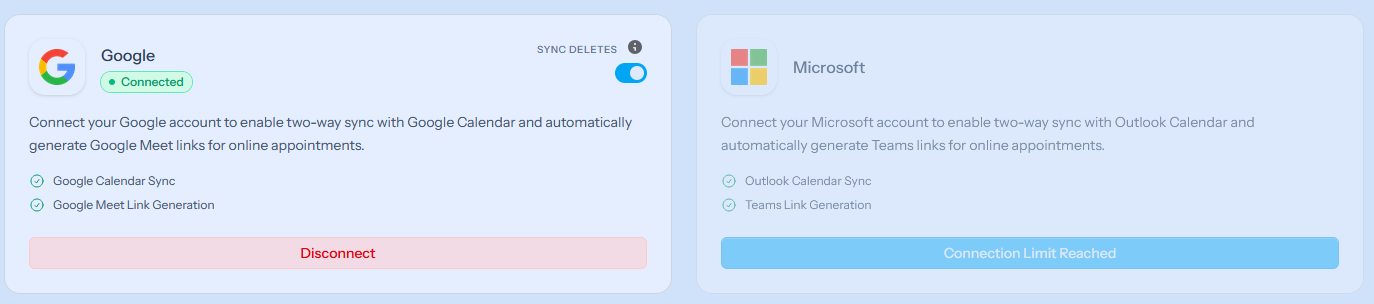
Important rule: Only one provider (either Google or Microsoft) can be connected to a calendar at a time. If you want to switch providers, you must disconnect the existing integration first.
- Navigate to the Third party apps page.
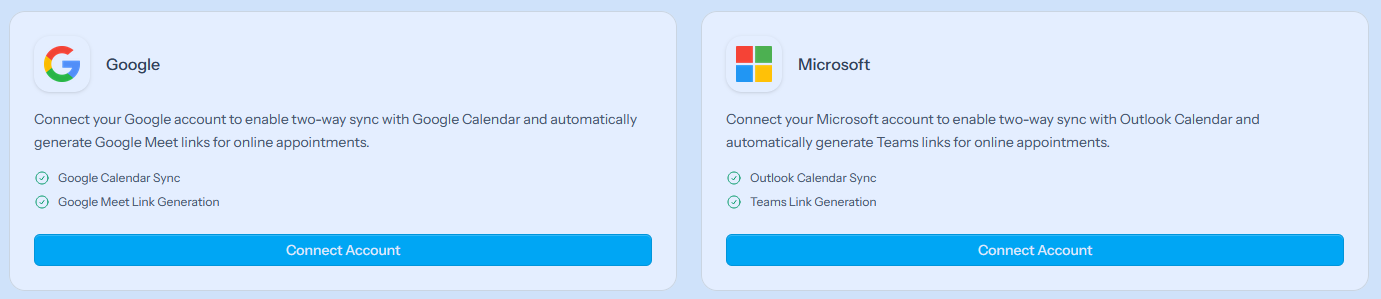
- Find the Google or Microsoft card and click the Connect button.
- In the pop-up window, log in to your external (Google or Microsoft) account and accept the required permissions.
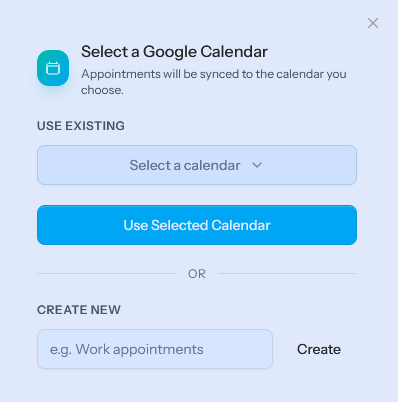
- After a successful login, select which calendar you want to start syncing with from the appearing list.
2. Automatic Synchronization and Deletion Settings
After connecting, synchronization works completely automatically in the background. However, you can control how deletions behave between the two systems.
- Stay on the Third party apps page.
- Find the "Sync deletes" toggle.
-
- If turned on: If you delete an event from your external (e.g., Google) calendar, it will also be automatically deleted from our platform (among the bookings made here).
-
- If turned off: Deleting an event in the external calendar will not affect the booking on our platform.
3. Setting Up Online Meetings (Google Meet / Teams)
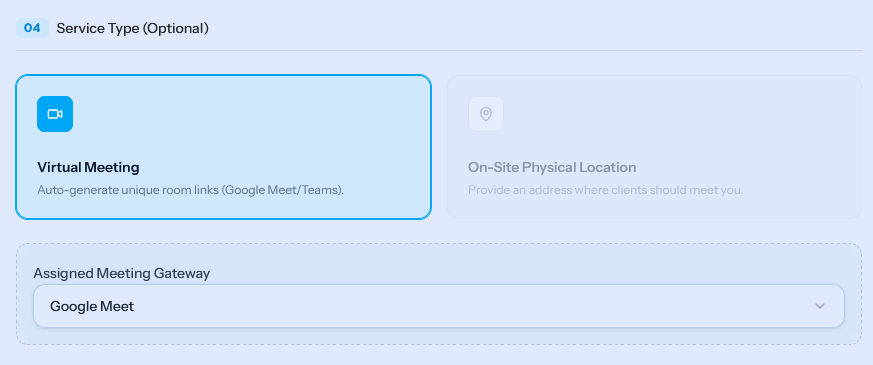
Once your calendar is successfully connected, you can configure it to automatically generate an online video call link (Google Meet or Microsoft Teams) for the given service.
- Go to the configuration menu of the service you created on our platform (where you set the service details, price, and duration).
- Scroll down to the bottom of the page.
- Select the Virtual Meeting section.
- From the drop-down menu, select the desired service:
-
- Google Meet (if you connected a Google Calendar)
-
- Microsoft Teams (if you connected a Microsoft Calendar)
- After saving, when a client books this service, the system will automatically generate and send out the meeting link alongside the calendar entry.