This guide demonstrates how to create a new calendar for your services or modify the basic details, preferences, and opening hours of your existing calendars.
1. Getting Started and Business Verification
A prerequisite for creating a calendar is having a registered business.
- If you haven't created a business yet, the system will warn you, and you must click the "Create brand" button to set it up before creating a calendar.
2. Calendar Status: Activation, Deactivation, and Deletion
You can see the current status of your calendar in the header (top right), where you can also make status updates:
- Activation / Deactivation: Use the "Make Inactive" button to pause the calendar, preventing clients from booking appointments. You can reopen bookings at any time by clicking the "Make Active" button.
- Deleting a calendar: You can only delete an inactive calendar by clicking the trash can icon.
- Important restriction: If the calendar has future active bookings, the system will block the deletion and display a pop-up window for security reasons. To delete the calendar, you must either wait until those appointments take place or cancel them beforehand.


3. Basic Information
The basic settings determine the identification of your calendar and its timezone-based operation:
- Calendar name: The calendar will appear under this name on your dashboard and on the booking page.
- Contact email: Notifications related to the calendar will be sent to this email address.
- Timezone: You can select the appropriate European timezone from a searchable drop-down menu. The system calculates available timeslots based on this setting.
- Days bookable in advance: Enter a number to specify how many days in advance clients can plan and book an appointment (e.g., if you enter 30 days, they cannot select a slot further than a month away).
4. Preferences and Calendar Image
In this section, you can customize the appearance and special behaviors of your calendar:
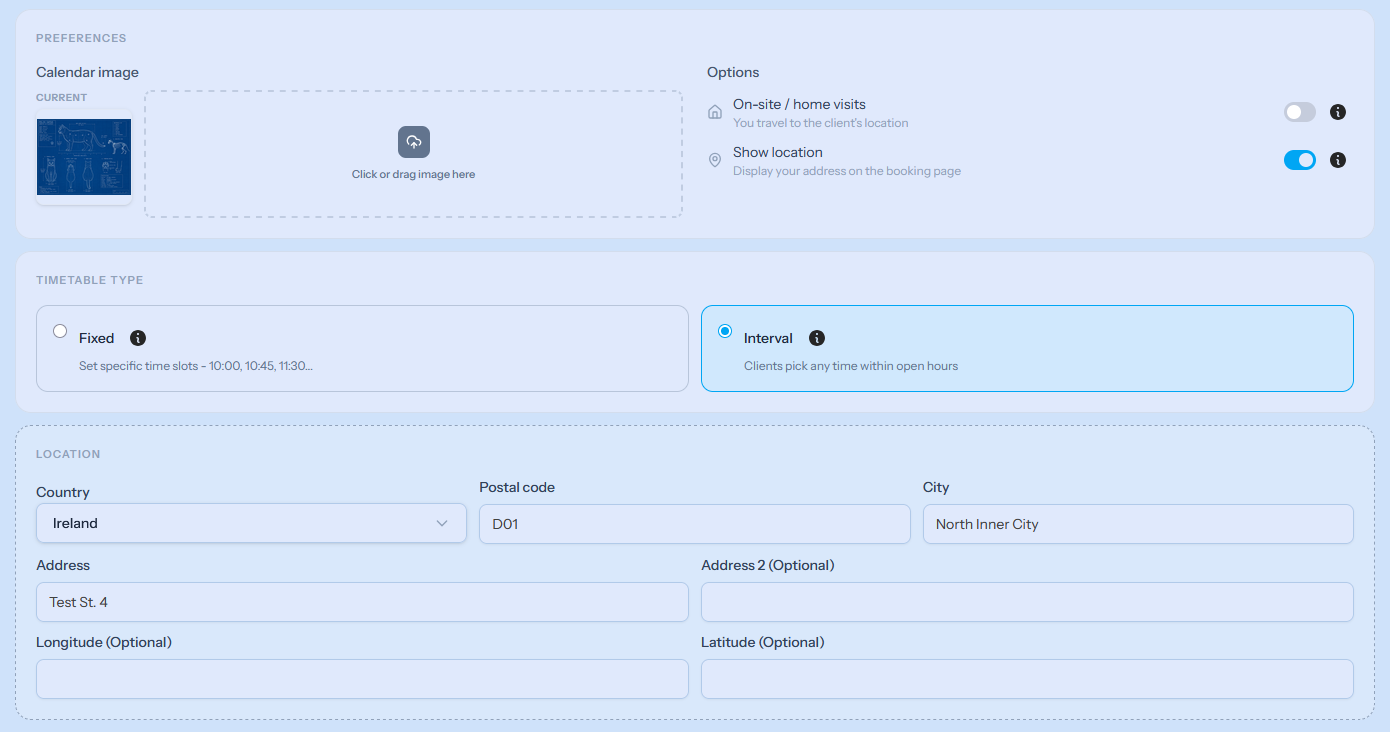
- Calendar image: You can upload a custom image for the calendar.
- Uploading: Click the area indicated by the dashed line, or simply drag and drop the image from your computer.
- Modifying / Deleting: If an image is already uploaded, you can delete it using the appearing X button or overwrite it by dragging in a new image.
- On-site / home visits: Turn this on if you travel to the client's location to perform the service.
- Show location: Turning this on will show your exact address on the booking page.
- Note: Activating this toggle displays a new Location block where you can provide the postal code, city, exact address, and optionally the GPS coordinates.
5. Scheduling Type
Here you can define how available slots are calculated within opening hours:
- Fixed: Fixed timeslots are created. Clients can book precisely defined, consecutive appointments (e.g., 10:00, 10:45, 11:30).
- Interval: Flexible timeslots. Clients can freely choose any time that suits them within opening hours, provided its duration fits into the available free spaces (e.g., they can book a 40-minute service for 10:00 or even 10:10).
6. Opening Hours and Saving
You can configure your regular working hours broken down by day using the schedule configurator at the bottom of the page.
Once finished, click the "Save changes" button in the bottom right corner to record the data.
What happens if the modification conflicts with an existing booking?
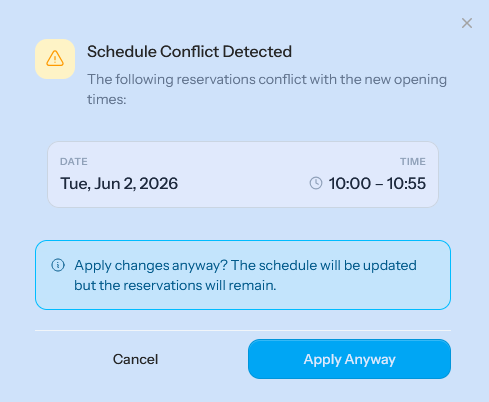
If you change the opening hours or the timezone, and the new settings would place an existing booking during your "closed" hours, the system will display a Scheduling Conflict Detected pop-up window.
- The window lists the exact date and time of the affected bookings.
- Apply Anyway: Clicking this saves the new schedule, but the existing bookings remain valid.
- Cancel: You can cancel the save operation to reschedule the problematic bookings first.